Mobile App: Flutter for Android & iOS
Build the technician, manager and customer app against your server, rebrand it, sign it and publish it.
Before You Start
Placeholders in this guide: app.example.com stands for your own server address, and upload and upload-keystore.jks are sample key names you can change. Paths such as android/key.properties are relative to the AppSourceCode folder.
The app works with your own FieldOps web install: build it with your server’s URL, your own application id, name and icon, your own Firebase project (optional, for push) and your own Google Play and Apple developer accounts. Nothing points at the author’s servers.
The app was built and tested as debug builds against a local server; it was not tested on a real device (Android or iOS). Test a release build on real Android and iOS phones before publishing.
What the App Does
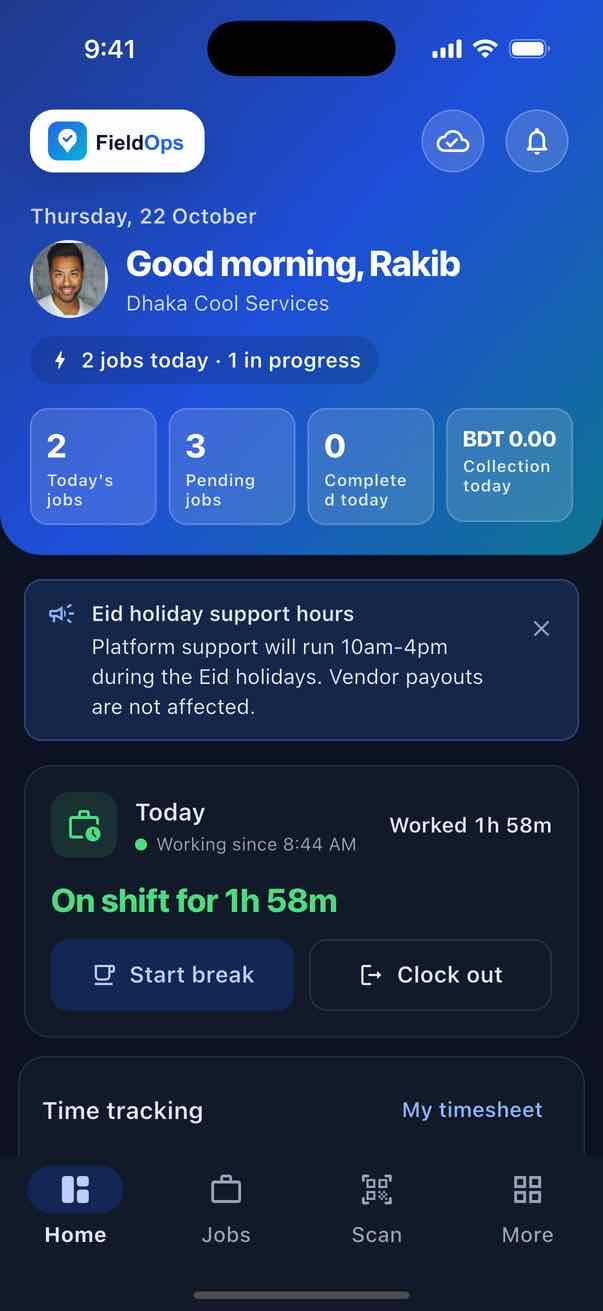
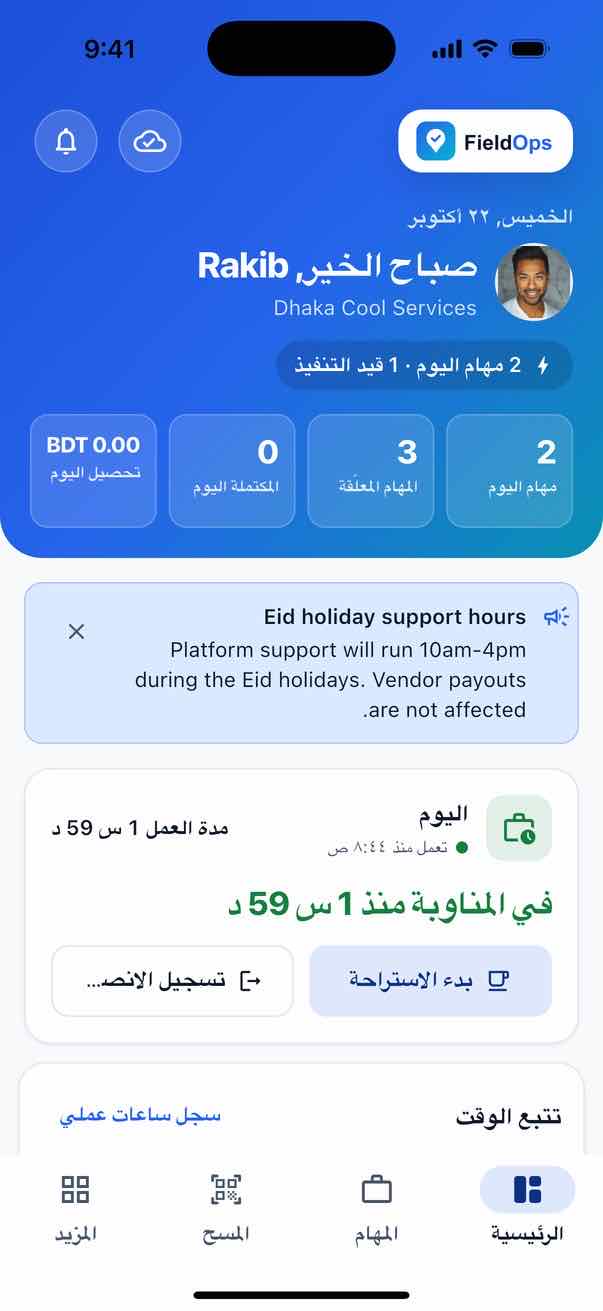
A native Flutter app (no WebView) for technicians, managers and customers: 72 screens in 26 feature folders, talking to the web platform through /api/v1 with Sanctum tokens. It is offline-first, uses GPS for check-in and live tracking, and ships in English, Bangla, Arabic (RTL) and French with light, dark and system themes.
Technician
Jobs, statuses, check-in/out, checklist, photos, parts, signatures, invoice and payment, estimates, AI service report, chat.
Open →Manager / dispatcher
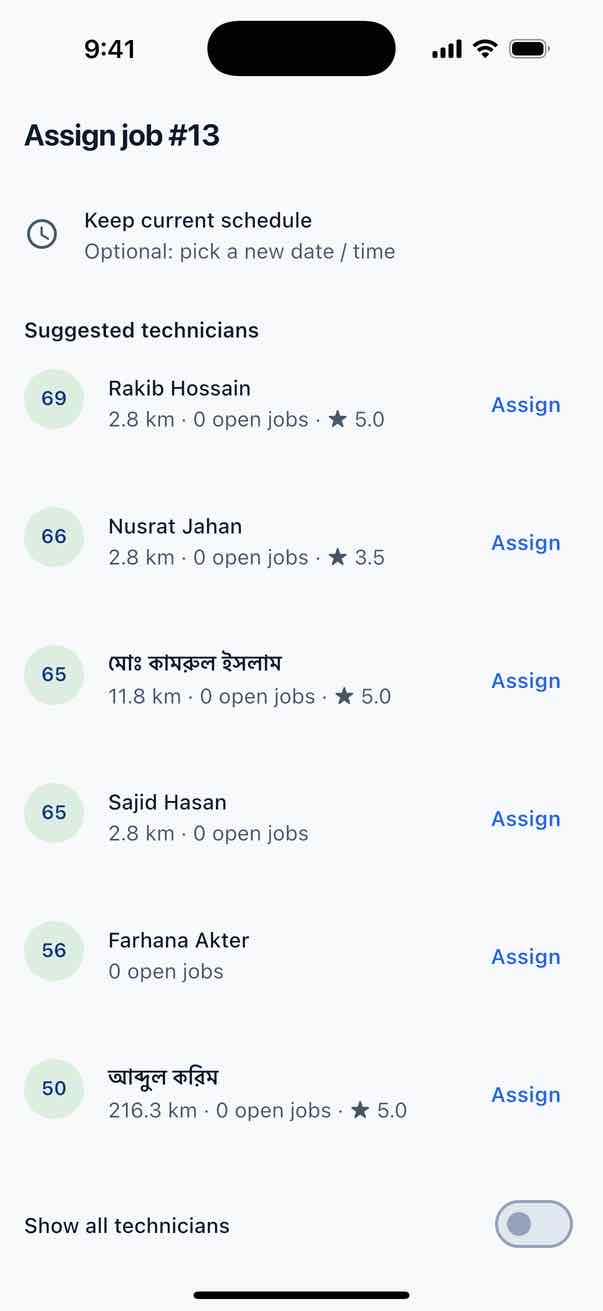
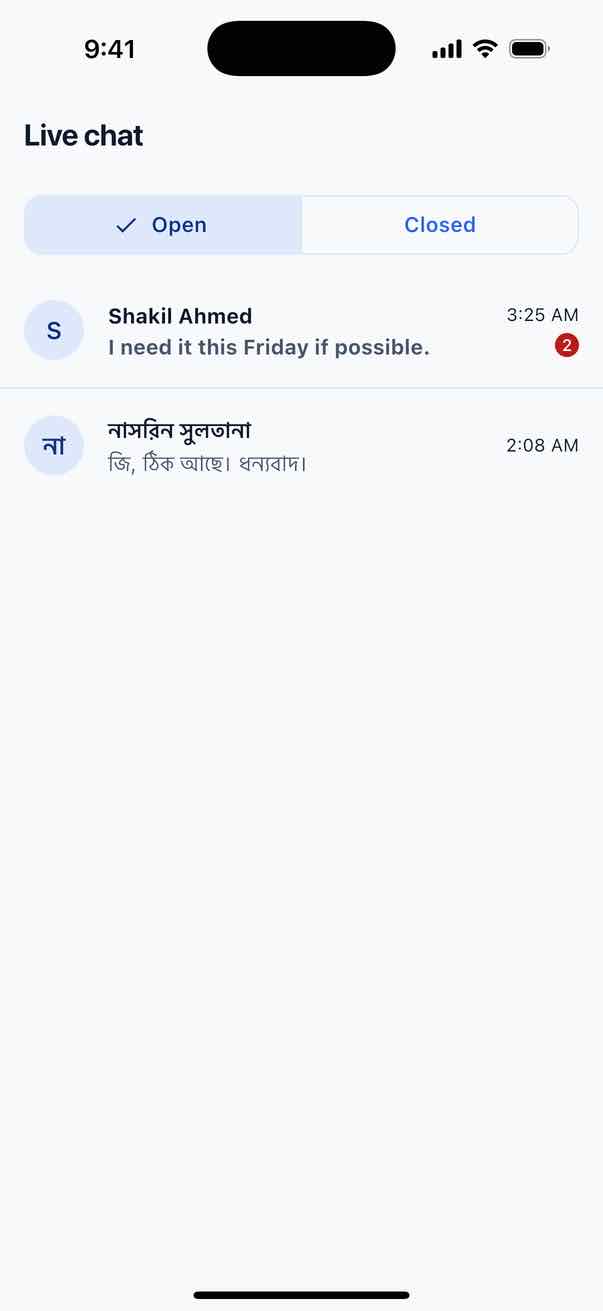
Dispatch board, team jobs, assign, emergency job, technician ratings, website live-chat inbox.
Open →Customer
Customer panel: requests, bookings, tracking, quotations, invoices and online payment, PDFs.
Open →Offline-first
Read-through cache and an outbox with idempotency keys, retries with backoff and a Pending uploads page.
Open →Push (optional)
Firebase Cloud Messaging and local notifications; tapping a job push opens that job.
Open →Screens
Sign-in
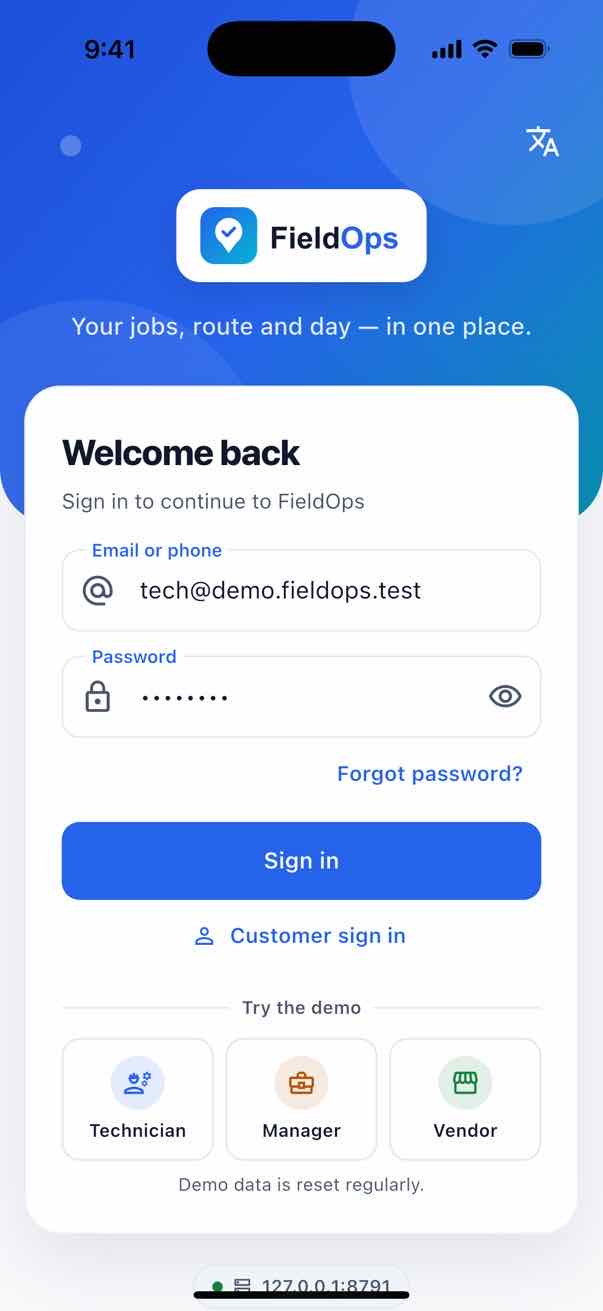
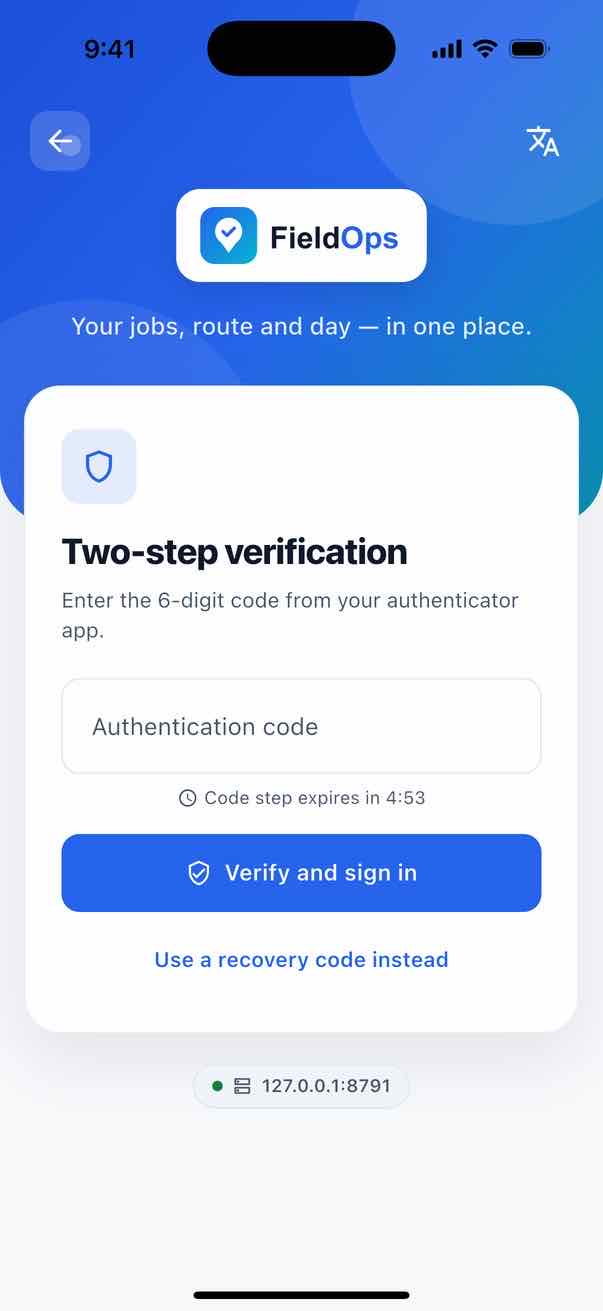
E-mail or phone login, two-factor code, forgot and change password, fingerprint / Face ID unlock, one-tap demo logins on a demo server (“Try the demo”), a Customer sign in button that opens the customer panel, and a “workspace blocked” screen for vendor accounts with unpaid subscriptions.
Technician job flow
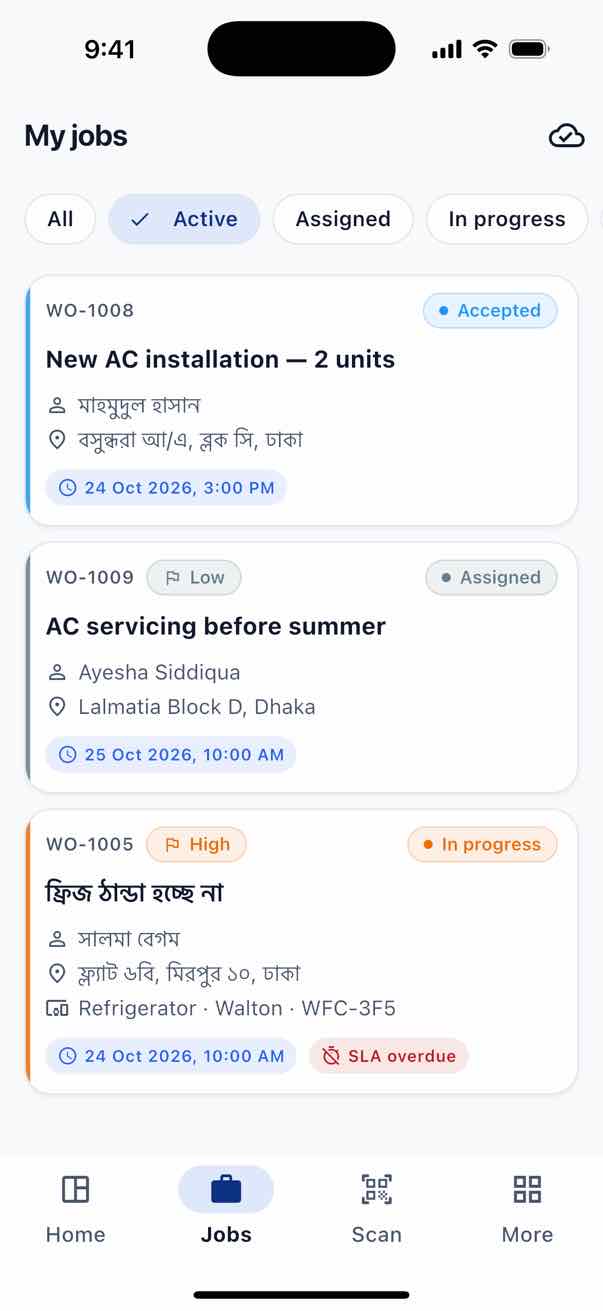
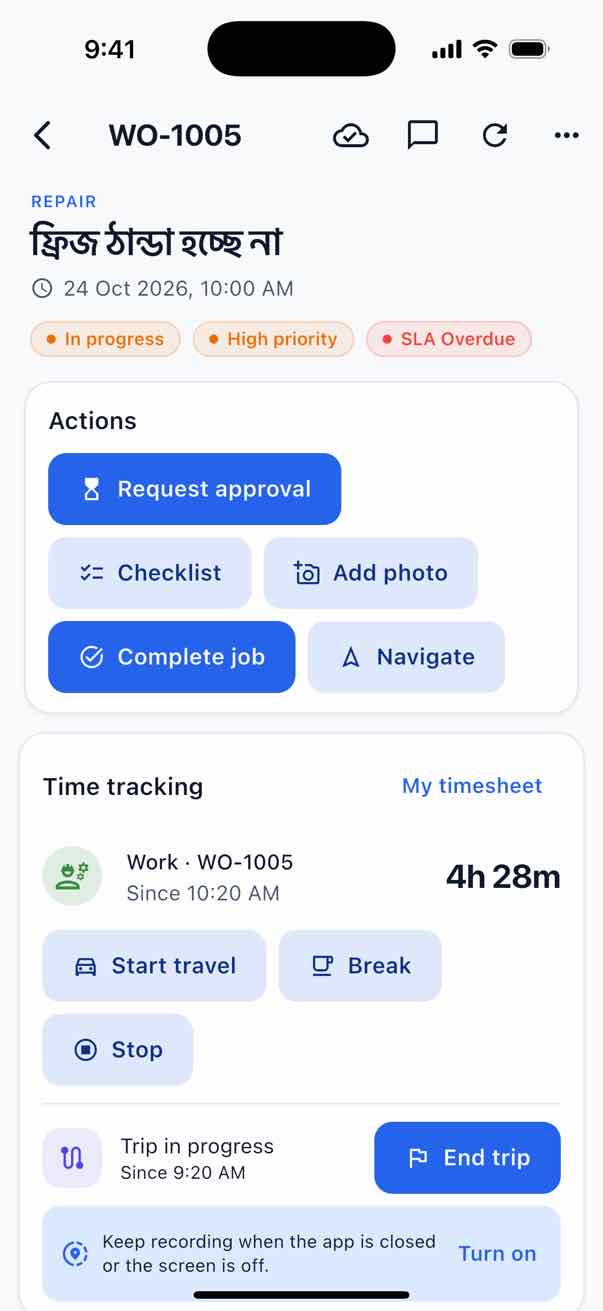
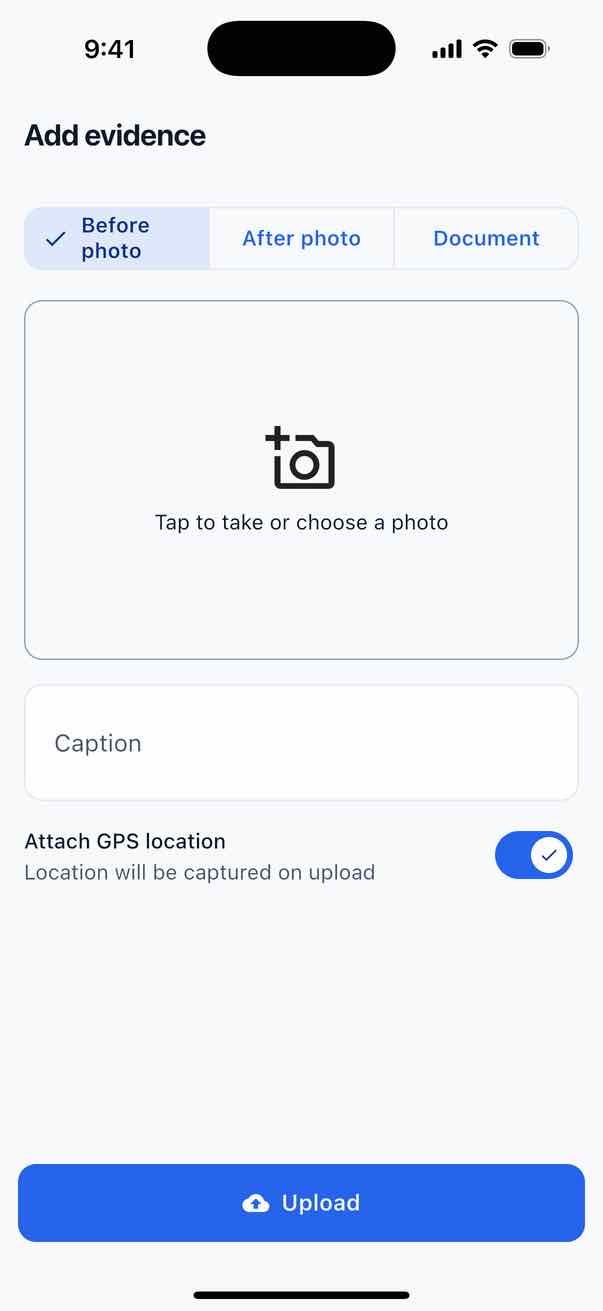
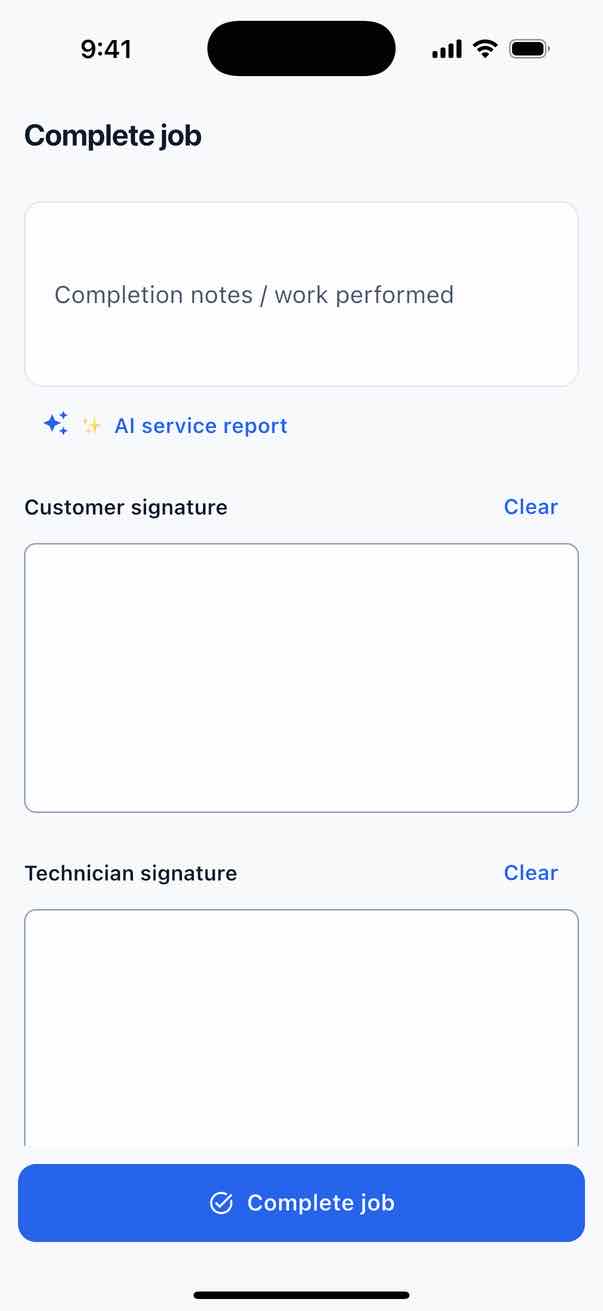
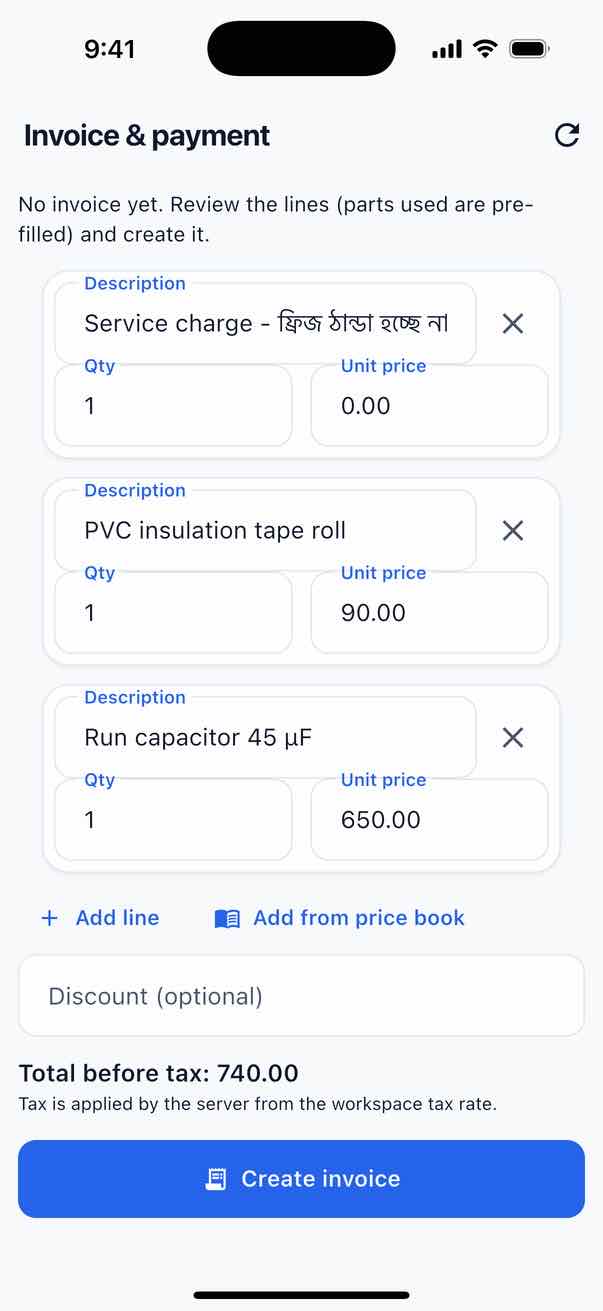
Jobs list and job detail; statuses assigned → accepted → on the way → arrived → in progress → awaiting approval → completed; check-in and check-out with GPS; arrival and completion verification codes; checklist; before/after photo evidence; parts used and returned from van stock; job notes and escalation history; complete with customer and technician signatures; invoice, collect payment and share the receipt; on-site estimates from the price book with customer approval; AI service report; job chat.
Technician day
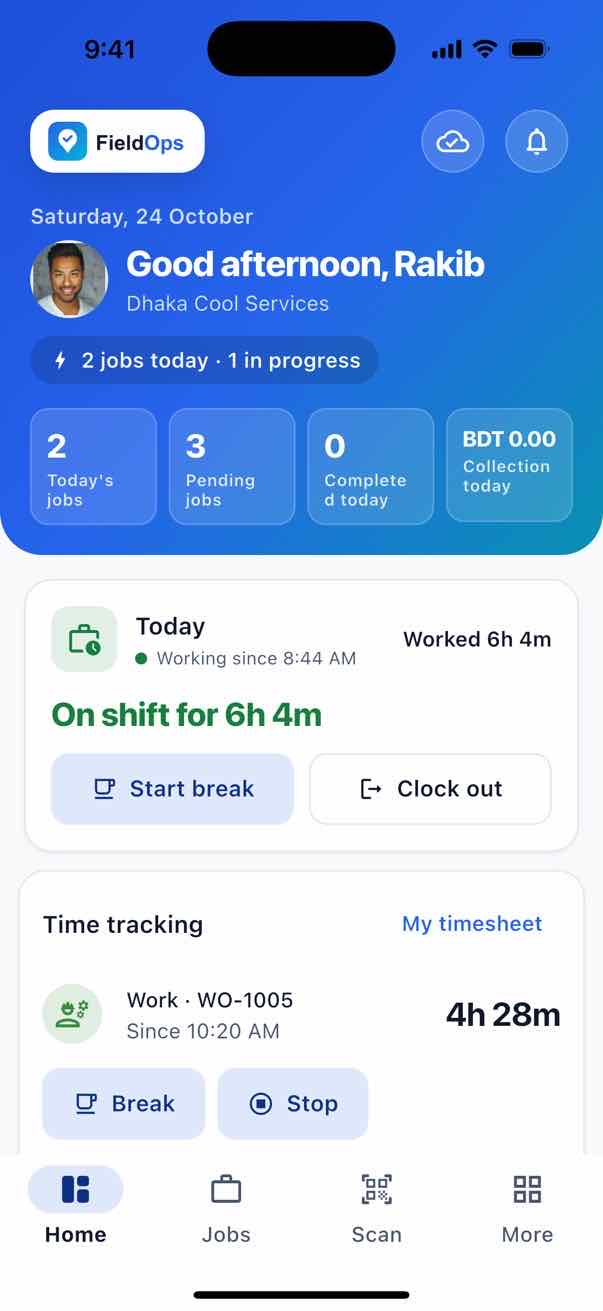
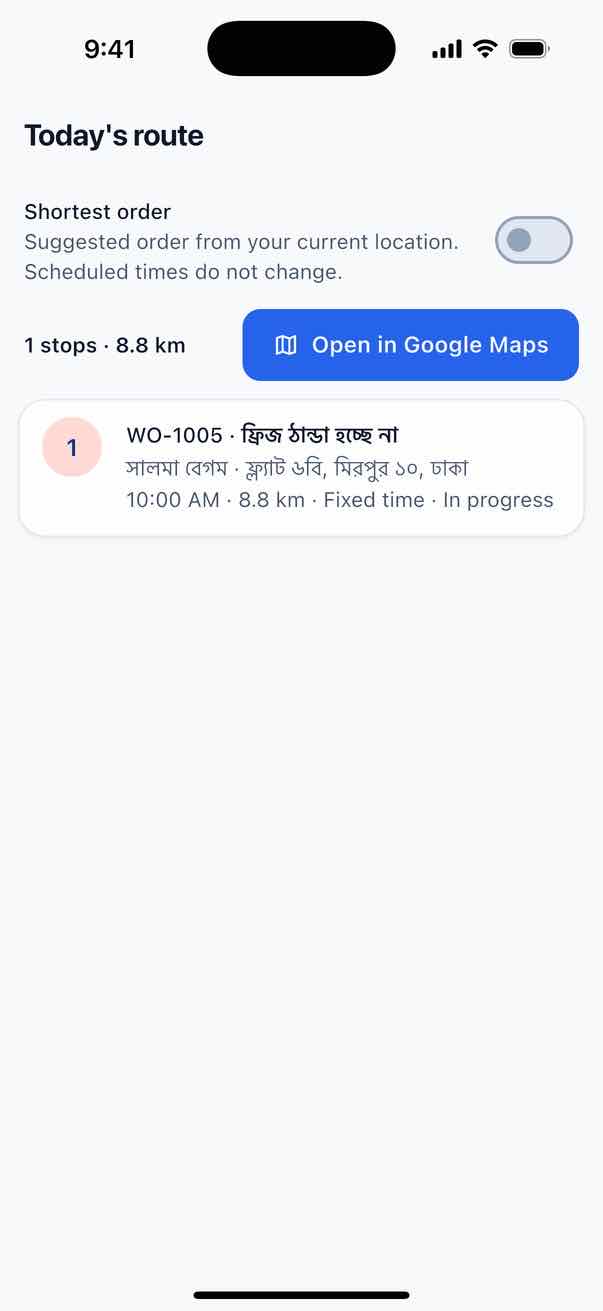
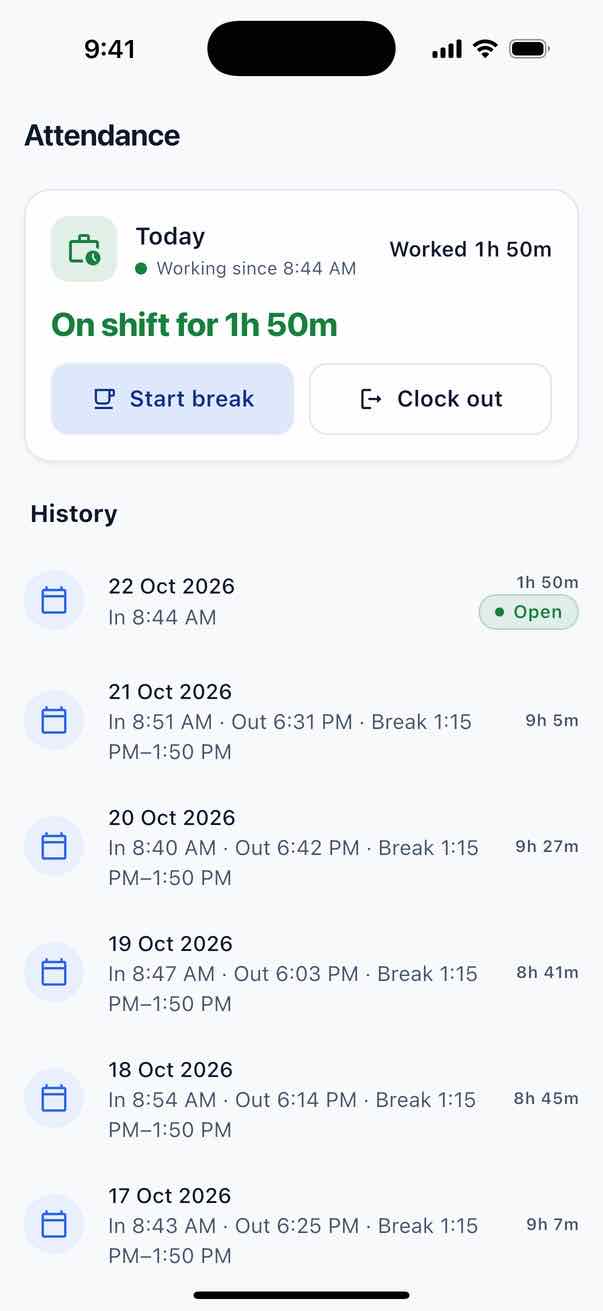
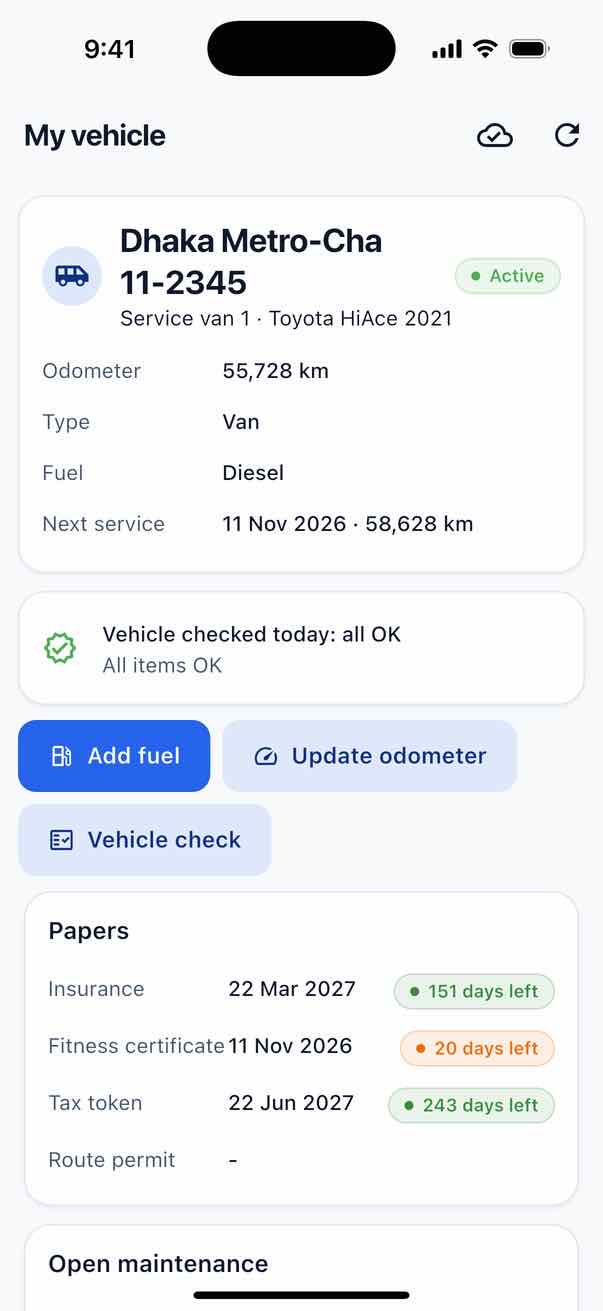
Dashboard and earnings, today’s route, attendance (clock in/out, any number of breaks), timesheets and trips, leave requests, expenses with receipts, warranty claims, stock requests, van stock, my vehicle (fuel, odometer, vehicle checks), my tools (QR check-out and return), asset QR scan with asset detail and service request, checklist templates, scorecard, knowledge-base Q&A, notifications, profile and the More menu. Number fields accept valid values only (amounts with 2 decimals, odometer up to 7 digits).
Managers and dispatchers
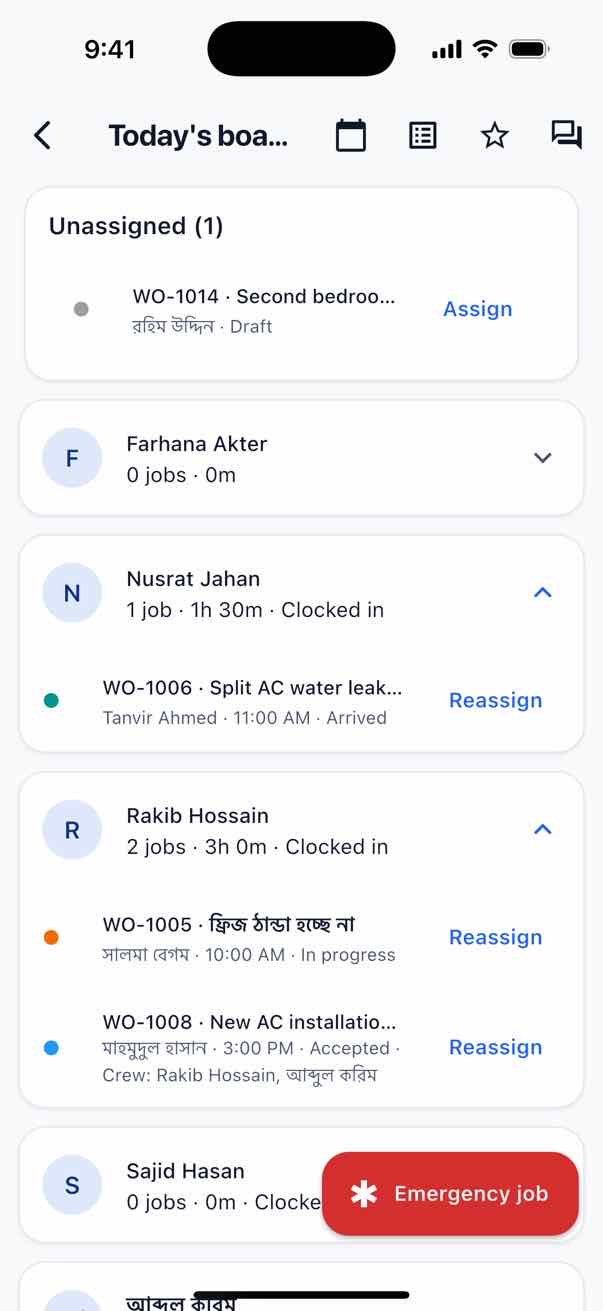
Shown to users with the work-orders.manage permission (More → Dispatcher mode): dispatch board, team jobs, assign with suggested technicians, reschedule, emergency job, technician ratings and the website live-chat inbox. Every user also sees platform announcements and can open support tickets to the platform (vendors).
Offline, GPS and push
- Offline: jobs, job detail, parts, notes, documents, checklist templates, van stock, invoices and permissions are cached in sqflite. Every field action (status, check-in/out, checklist, evidence, complete, parts, notes, chat, payment, fuel, odometer, vehicle check, tools) goes to an outbox first with an
Idempotency-Key, is replayed in order and retried with backoff (5 s doubling, up to 10 minutes). More → Pending uploads shows Sync now / Retry / Discard. - GPS: location pings while a job is “on the way” (the customer’s tracking link) and opt-in background location while clocked in or on a trip (Profile → App → Background tracking).
- Push: FCM and local notifications when Firebase is configured.
Customer Panel
Customers use the same app. Customer sign in on the login screen opens /login/customer: e-mail and password of their customer portal account (the same login as /portal). The customer token is stored apart from a staff token; a signed-in customer always lands in the customer panel. “Reset customer password” and “Create a customer account” open the portal pages in the browser; on a demo server “Try the demo · Customer panel” signs in with one tap.
| Tab | What the customer does |
|---|---|
| Overview | Amount due, upcoming visits, open requests, pending quotes, next visit; Request service and Book service (opens the company’s booking page) |
| Services | Service catalogue (request a service), service requests, appointments (Track the technician, Review after completion), assets, warranty claims, contracts; new request or warranty claim |
| Billing | Invoices with Pay (choose a gateway, pay in the browser, or see offline instructions), quotations (approve a Good/Better/Best option or reject with a reason), payments; PDFs shared from the phone |
| Account | Profile (name, phone, address, city, postal code), change password, sign out |
A company switcher appears when the customer deals with several companies (marketplace). Phones show a bottom navigation bar, tablets (840 px and wider) a navigation rail. The panel talks to /api/v1/customer (29 routes, see REST API v1).
Key Screens
The key app screens, from the seeded region-neutral demo company “Metro Cool Services” (iPhone 16 Pro simulator).
Technician (Ryan Cooper, [email protected]) (6)
Manager / owner (Sarah Mitchell, [email protected]) (3)
Requirements
| Item | Version |
|---|---|
| Flutter / Dart | Flutter 3.47 with Dart 3.13 (pubspec.yaml: sdk: ^3.13.5) |
| Android | Android Studio with the Android SDK, JDK 17 (the Gradle build targets Java 17); min/target SDK follow Flutter’s defaults |
| iOS | A Mac with Xcode, an Apple Developer account; deployment target iOS 15.0 |
| Backend | Your FieldOps web install reachable over HTTPS (or your computer’s IP for local testing) |
Setup & Run
cd AppSourceCode
flutter pub get                       # also generates the translations (lib/l10n/gen)
flutter run                           # Android emulator -> http://10.0.2.2:8000
flutter run --dart-define=API_BASE_URL=http://192.168.1.20:8000   # phone or iOS simulator on your network
flutter run --dart-define=API_BASE_URL=https://app.example.com    # your live server
Sign in with a technician or company account of your web install, or tap Customer sign in with a customer portal account. On a demo install (APP_DEMO=true) the login screens offer one-tap demo logins.
API URL Configuration
The server address is a compile-time value (lib/core/config/app_config.dart):
| Define | Default | Meaning |
|---|---|---|
API_BASE_URL | http://10.0.2.2:8000 on Android (the emulator’s alias for your computer), http://127.0.0.1:8000 on iOS and other platforms | Root URL of the web install, without /api; the app calls {API_BASE_URL}/api/v1 and loads files from {API_BASE_URL}/storage/… |
Always pass --dart-define=API_BASE_URL=https://your-domain.com to flutter run and flutter build. A release built without it points at 10.0.2.2 / 127.0.0.1 and cannot sign in.
For a release, use HTTPS. The Android manifest allows plain HTTP (android:usesCleartextTraffic="true") so local testing works; set it to false in android/app/src/main/AndroidManifest.xml once you only use HTTPS. iOS allows plain HTTP only on the local network (NSAllowsLocalNetworking).
Firebase Push (Optional)
No Firebase files are shipped and the app runs without them (push stays off). To turn push on:
Create a Firebase project
Add an Android app with your application id and an iOS app with your bundle id (both
com.fieldops.appuntil you rename them, Rebrand).Android
Download
google-services.jsonintoandroid/app/. The Google Services Gradle plugin is applied automatically when the file exists (android/app/build.gradle.kts).iOS
Add
GoogleService-Info.plisttoios/Runner/in Xcode (Runner target). Enable the Push Notifications capability and Background Modes → Remote notifications (the shippedInfo.plistonly declareslocation). Upload an APNs auth key (.p8) in Firebase → Cloud Messaging.Server
Set
FCM_DRIVER=fcm,FCM_PROJECT_IDandFCM_SERVICE_ACCOUNT_PATHon the web server, from the same Firebase project (Web Platform → Push).Test
Sign in on a phone (the app registers its token with
POST /api/v1/device-tokens), assign that technician a job and check the push arrives in background and foreground.
Rebrand: Name, Bundle Id, Icon
| What | Where |
|---|---|
| Name, logo and colour shown inside the app | Nothing to change in code: the app loads them from your Platform settings (GET /api/v1/branding) and falls back to “FieldOps” |
| Name under the icon (Android) | android:label in android/app/src/main/AndroidManifest.xml |
| Name under the icon (iOS) | CFBundleDisplayName in ios/Runner/Info.plist |
| Fallback app title | appTitle in lib/l10n/app_en.arb (and app_bn, app_ar, app_fr) |
| Android application id | applicationId and namespace in android/app/build.gradle.kts; move MainActivity.kt from android/app/src/main/kotlin/com/fieldops/app/ to the matching folder and change its package line |
| iOS bundle id and team | Xcode → Runner target → Signing & Capabilities (PRODUCT_BUNDLE_IDENTIFIER, currently com.fieldops.app; no DEVELOPMENT_TEAM is set: choose your own team) |
| App icon (Android) | Replace the ic_launcher.png files in android/app/src/main/res/mipmap-* |
| App icon (iOS) | Replace the images in ios/Runner/Assets.xcassets/AppIcon.appiconset (Xcode shows each size) |
| Launch screen | android/app/src/main/res/drawable*/launch_background.xml, ios/Runner/Assets.xcassets/LaunchImage.imageset |
| Version | version: 1.0.0+1 in pubspec.yaml (name + build number) |
Choose the final application id before the first store upload; it cannot change afterwards. Firebase apps must be registered with the same id.
Android Signing & Build
Create an upload key once and keep it, with its passwords, backed up outside the project. Losing it means you can no longer update the app unless Play App Signing holds the app key.
keytool -genkey -v -keystore android/upload-keystore.jks -keyalg RSA -keysize 2048 -validity 10000 -alias upload
cp android/key.properties.example android/key.properties    # fill in the passwords
android/key.properties (git-ignored, like *.jks):
storePassword=CHANGE_ME
keyPassword=CHANGE_ME
keyAlias=upload
storeFile=../upload-keystore.jks     # relative to android/app/
Without key.properties the release build stops with an error, preventing an accidental debug-signed upload. For local testing only, the documented Gradle override can allow a debug-signed release; Play Console will reject that build.
# bump version: in pubspec.yaml first (the build number after + must grow with every upload)
flutter build appbundle --release --dart-define=API_BASE_URL=https://app.example.com
# -> build/app/outputs/bundle/release/app-release.aab
flutter build apk --release --dart-define=API_BASE_URL=https://app.example.com    # APK for direct installs
iOS Signing & Build
Open the workspace
Open
ios/Runner.xcworkspacein Xcode.Signing
Runner target → Signing & Capabilities: choose your team (none is preset), set your bundle id, keep Automatically manage signing on.
Capabilities
Background Modes → Location updates is already declared; add Push Notifications and Remote notifications only if you use Firebase.
Permission texts
ios/Runner/Info.plistexplains camera, photo library, location (when in use and always) and Face ID use. Keep them accurate for your app; App Review reads them.Build and upload
flutter build ipa --release --dart-define=API_BASE_URL=https://app.example.com
# -> build/ios/ipa/*.ipa ; upload with Xcode Organizer or the Transporter app
Background Location (Play Console & App Store)
The app asks for location while in use for check-in/out, attendance, photo GPS tags and live tracking while a job is on the way, and in the background only after a technician opts in (Profile → App → Background tracking), while clocked in, on a trip or sharing live location. On Android it then runs a location foreground service with a persistent notification.
| Permission (Android manifest) | Why |
|---|---|
ACCESS_FINE_LOCATION, ACCESS_COARSE_LOCATION | Check-in, attendance, evidence GPS, live tracking |
ACCESS_BACKGROUND_LOCATION, FOREGROUND_SERVICE, FOREGROUND_SERVICE_LOCATION, WAKE_LOCK | Opt-in background tracking |
CAMERA | QR scan, evidence and receipt photos |
POST_NOTIFICATIONS | Push and local notifications |
USE_BIOMETRIC | Fingerprint / face login |
Google Play declaration
Location permissions form
Play Console → App content → Location permissions: declare background location access for the core feature “live job tracking and mileage for field technicians while they are clocked in or on a trip”.
Video
Record a short video showing the in-app explanation, the opt-in in Background tracking, the system permission prompt and the feature in use (tracking link or trip), and add its link.
Foreground service
Declare the location foreground service type in the Foreground service permissions form with the same use.
Data safety
List precise location, photos, name, e-mail and phone as collected for app functionality, sent to your own server.
If you do not want background tracking, remove ACCESS_BACKGROUND_LOCATION and the foreground-service permissions from the manifest and location from UIBackgroundModes; the opt-in then cannot be granted, and in-use location still works.
Publishing
Account deletion: customers can delete their account in the app (Account → Delete account) and in the customer portal (Profile → Delete account). In Google Play and App Store Connect, enter https://app.example.com/portal/delete-account as the account-deletion URL, using your own domain in place of the placeholder.
Google Play
Create the app in Play Console, enrol in Play App Signing, upload
app-release.aabto Internal testing, complete store listing, content rating, data safety and the location declaration, then promote to production.App Store
Create the app in App Store Connect with the same bundle id, upload the
.ipa, test with TestFlight, add screenshots, privacy details and a demo account for App Review (a technician login on your server), then submit.Review accounts
Give reviewers a working technician account on your live server; the app has no content without a backend.
Updates
Raise the build number in
pubspec.yamlfor every upload; keep the same signing key and bundle id.
Accounts & Costs
Google Play Console (one-time registration fee) and the Apple Developer Program (yearly fee) to publish. Firebase Cloud Messaging has no charge. A Mac with Xcode is needed for iOS builds.
Project Layout
| Path | Contents |
|---|---|
lib/main.dart, app.dart, router.dart | Entry point, MaterialApp with go_router and the auth redirect |
lib/core/ | Config (API_BASE_URL), API client (Dio), token storage, location service, branding, shared widgets |
lib/core/offline/ | sqflite cache and outbox, connectivity, file vault |
lib/core/push/ | Firebase Messaging and local notifications |
lib/features/<feature>/ | 26 features (auth, customer, dashboard, jobs, assets, checklists, attendance, expenses, leave, warranty, notifications, profile, home, inventory, billing, manager, ai, chat, estimates, fleet, platform, route, scorecard, stock_requests, timesheets, tracking), each with data / domain / presentation |
lib/l10n/ | app_en.arb, app_bn.arb, app_ar.arb, app_fr.arb (generated code in lib/l10n/gen) |
test/ | 26 test files (198 tests): flutter test |
Troubleshooting
- “Cannot reach the server” or the login spins
The build has the wrong
API_BASE_URL(default10.0.2.2), the phone cannot reach that address, or the certificate is invalid. Openhttps://your-domain/upin the phone’s browser.- Login works on the web but not in the app
The user must be active (an invited user first sets a password from the invite e-mail); technicians with a custom role need
inventory.viewfor the parts list. Customers must use Customer sign in, not the staff form. The account must belong to an active company; vendor accounts with an unpaid subscription see the workspace-blocked screen. Accounts with two-factor authentication get the code step.- Images and photos do not load
Run
php artisan storage:linkon the server and checkAPP_URL.- No push notifications
Firebase files missing, a different Firebase project than
FCM_PROJECT_ID,FCM_DRIVERstilllog, no queue worker on the server, or (iOS) no APNs key and capabilities.- Actions stay in “waiting to sync”
The phone is offline or the server answers with an error; More → Pending uploads shows each item and its error. Rejected items (403/404/409/422) are shown in red and can be discarded.
- Play Console rejects the bundle
The local debug-signing override was used, the build number was not increased, or the background-location declaration is incomplete. A normal release build stops when
android/key.propertiesis missing.
